

Chapter 7 - Canva Effects & Advanced Editing
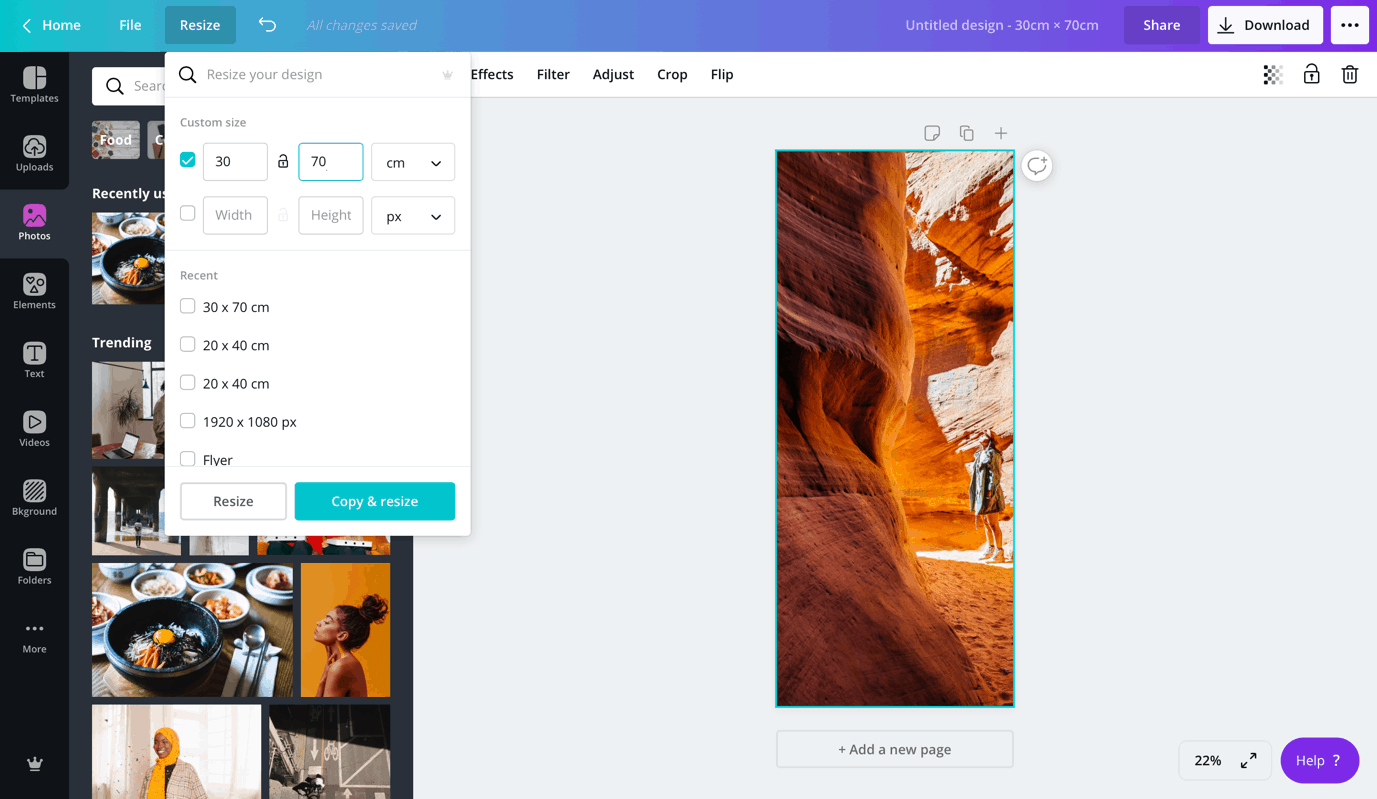
Resizing allows you to take one design and transform it into multiple pieces of content across different social media platforms without having to rebuild everything from scratch.
In this lesson, you’ll learn how to resize graphics for different platforms, reformat layouts, and repurpose your designs without rebuilding them from scratch — saving you hours each month.
RESIZE & REPURPOSE
Using the Resize Tool (Pro Feature)
The Resize tool is one of Canva Pro’s most powerful features because it instantly adapts your design to fit any platform’s dimensions. Instead of manually rebuilding your graphics, you can convert your post into a story, reel, Pinterest pin, YouTube thumbnail, or any other format with one click.
How to use the Resize tool:
Open your design in Canva.
Click Resize located in the top-left toolbar.
Choose a preset (Story, Reel, Post, Pin, YouTube Thumbnail, etc.).
Select Copy & Resize to generate a new version without altering your original design.
Canva will load the same design in the new dimensions.
Resize multiple versions at once:
You can also create multiple formats in a single step:
Inside the Resize menu, check multiple formats at once.
Click Copy & Resize — Canva creates a new tab for each format selected.
This is ideal for batching content for different platforms.
Locking proportions to avoid stretching:
If you enter custom dimensions:
Look for the chain/link icon next to the width and height.
Turn Lock on to maintain proportions.
Turn Lock off to stretch or compress your design intentionally.
Keeping proportions locked protects your content from distortion.
Repurposing Workflow
This workflow turns one piece of content into multiple outputs, saving hours of design time.
Turning a carousel into a reel
Start with your carousel design (1080×1350).
Resize to 1080×1920 for a Reel.
Combine pages into a single vertical video.
Add simple animations for sliding content.
Result: your carousel becomes a dynamic short-form video.
Turning a reel cover into a story graphic
Open your reel cover design.
Resize to Story format (1080×1920).
Reposition elements and adjust spacing.
Add optional story elements (stickers, CTAs).
Result: consistent visual branding across multiple platforms.
Repurposing templates to reduce design time
Instead of building from scratch:
Save your best designs as templates.
Reuse text styles, layouts, and grids.
Replace images & adjust colours per platform.
Use “Brand Kit” to instantly apply your colours and fonts.
This turns your content creation workflow into a streamlined, repeatable system..
-
Personal Instagram Page: @caitlinaarmstrong
Personal TikTok Page: @caitlinaarmstrong_
The Social Voice Instagram: @socialvoice.co
Website: https://www.thesocialvoiceco.com